Word-by-word and typewriter text animation in After Effects
Reveal text one word at a time with a Range Selector based on words, turn it into a typewriter with Smoothness at 0%, or let Flexile stagger the words for you.
By Filip Miernik
Tutorial
7 min read
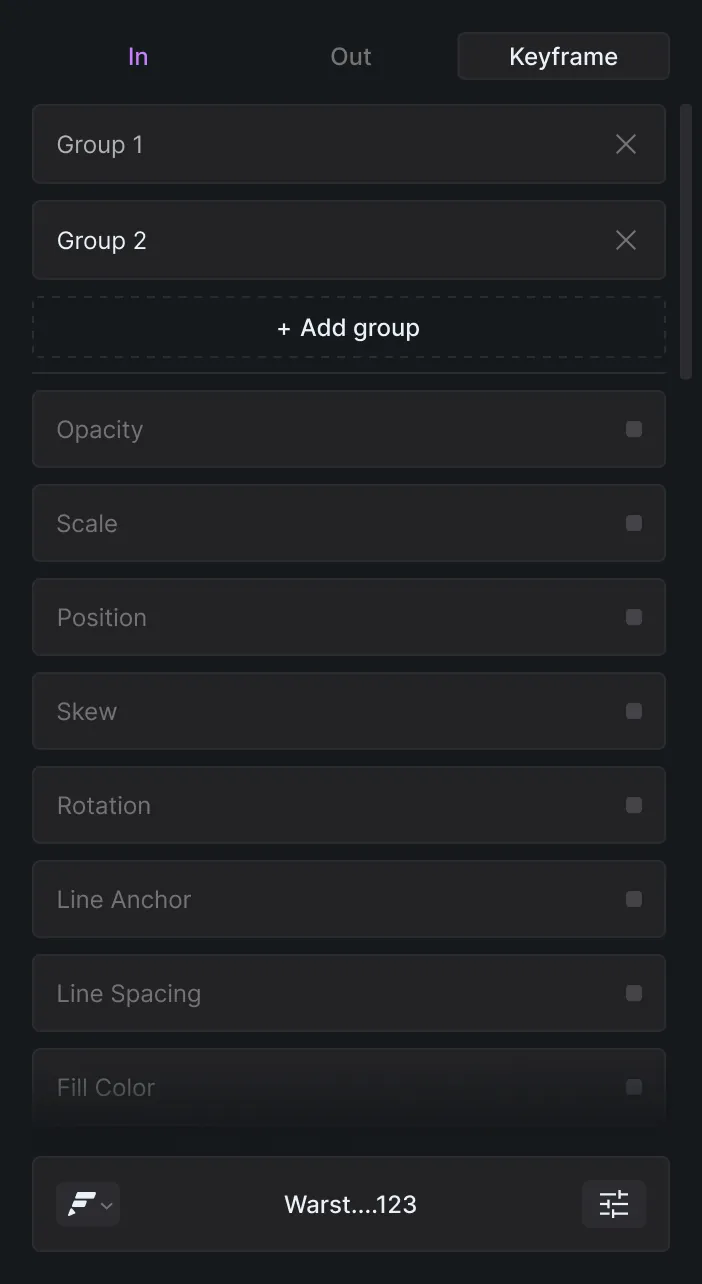
To animate text word by word in After Effects, add an Opacity text animator, set its Opacity to 0%, set the Range Selector’s Based On to Words and keyframe the selector’s Start from 0% to 100%. Each word then appears after the one before it. For a typewriter, base the selector on characters and set Smoothness to 0%, or apply Adobe’s Typewriter preset.
Flexile is our After Effects extension. The native method comes first below, and the Flexile shortcut comes at the end.
In this guide
- Animate text word by word, step by step
- Start, End or Offset
- Shape, Smoothness and Ease
- Make a typewriter effect
- Do it with Flexile
- What you need
How do you animate text word by word in After Effects?
You need one text layer and one text animator. Adobe describes an animator in three parts: the animator says which properties change, its selector says how much each character is affected, and you set the property values. The steps below follow Adobe’s Animating text page.
- Select the text layer and choose Animation > Animate Text > Opacity, or pick Opacity from the Animate menu on the layer in the Timeline panel. The new animator comes with a default selector, Range Selector 1.
- Set the animator’s Opacity to 0%.
- Open Range Selector 1 > Advanced and set Based On to Words.
- At the frame where the first word should appear, set a keyframe on Start at 0%.
- Move to the frame where the last word should be in and set Start to 100%.
- Play it back. Each word fades in as Start passes it.
Why Words and not Characters? With Characters, After Effects counts the spaces too, so the animation pauses between words while it animates the spaces. Words makes each word one unit. The same setting offers Characters Excluding Spaces and Lines, and Units switches Start and End between percentages and index numbers.
The time between the two Start keyframes is the length of the reveal, so move the second one closer for a faster reveal. Select both keyframes and press F9 for Easy Ease, so the reveal starts slowly and slows down again at the end.
Use Position, Scale or Blur instead of Opacity
The same steps work with other animator properties. For words that rise into place, choose Animation > Animate Text > Position, set the animator’s Position so the words sit lower, for example 0, 100, and keyframe Start from 0% to 100%. Adobe’s list of animator properties includes Anchor Point, Position, Scale, Skew, Rotation, Line Spacing, Character Offset, Character Value and Blur, and fill colours can be animated too.
Start, End or Offset: which one should you keyframe?
The selected words are the ones between Start and End. Which value you animate decides the direction.
- Start, 0% to 100%: words leave the selection from the left and lose the animator’s value one by one. With Opacity at 0%, that is a reveal. Adobe’s write-on example keys Start this way.
- End, 0% to 100%: the selection grows from the left, so words take the animator’s value one by one. With Opacity at 0%, the words disappear from the first to the last.
- Offset: moves the whole selection that Start and End define. Keyframe Offset when you want a band of fixed width to slide across the words.
Change the feel with Shape, Smoothness and Ease
The rest of Range Selector > Advanced decides how each word moves from affected to unaffected.
- Shape: Square, Ramp Up, Ramp Down, Triangle, Round or Smooth. It controls how the words between Start and End are selected, and a different shape can change the look of the whole animation.
- Smoothness: how long the change takes from one word to the next with the Square shape. It is 100% by default. At 0% each word switches at once.
- Ease High and Ease Low: Ease High sets how a word changes while it goes from fully to partly selected, Ease Low while it goes from partly selected to unselected. At 100% the change eases in gradually, at -100% it happens quickly.
- Randomize Order: applies the animator to the words in random order instead of left to right. Random Seed changes that order.
The same Based On Words setting is behind a karaoke-style word highlight, where a Fill Color property colours the word being said instead of revealing it.
How do you make a typewriter effect in After Effects?
Build it on the same Range Selector, or apply Adobe’s Typewriter preset.
Build it with a Range Selector
- Add an Opacity animator to the text layer and set its Opacity to 0%.
- In Range Selector 1 > Advanced, set Based On to Characters and Smoothness to 0%. At the default 100% the letters fade in. At 0% they switch on one by one, which gives the typewriter look.
- Keyframe Start from 0% to 100%. Adobe’s example runs it over 5 seconds.
With Characters, the spaces count as steps, so the typing pauses briefly between words. For a word-by-word pop-on instead, keep Smoothness at 0% and set Based On to Words: each word appears whole. Adobe walks through the write-on on its text animation examples page.
Use the Typewriter preset
After Effects ships a Typewriter preset under Text > Animate In in its animation presets. Select the text layer and apply it from the Effects & Presets panel, or from Adobe Bridge.
The same list has word-based presets: Fade Up Words, Straight In By Word, Spin In By Word, Stretch In Each Word, Twirl On Each Word, Random Word Shuffle In and Pop Buzz Words. Adobe built its text presets in a 720 × 480 comp with 72-point Myriad Pro, so position values may need adjusting in a larger comp.
Animate text word by word with Flexile
Flexile’s Text page builds the same kind of reveal without keyframes. It adds a native After Effects text animator whose selector is driven by an expression, plus a controller effect on the layer, and staggers the words by a number of frames you set.
- Select one text layer and open the Text page in the Flexile panel. It works on one text layer at a time.
- Choose In mode. In animates the words into place from the layer’s start. Out animates them away at the layer’s end.
- Switch on the effects you want, for example Opacity and Position. Opacity starts at 0 and Position 200 pixels lower, and you can change both in Effect Controls.
- Open the settings menu and set Base On to Words and Letter Flow to Left, so the first word goes first. Both settings change the animator your first effect created, so they only work after step 3.
- In Effect Controls, set Offset (the delay in frames from one word to the next) and Time (how long each word takes).
In mode times each word from the layer’s in point and eases it with an ease-out quint curve. In Effect Controls, switch on Enable Overshoot and each word springs past its final value and settles, shaped by Overshoot and Frequency.
Each effect you switch on is one undo step. What you get is native After Effects: a text animator on the layer and a controller effect whose values you change in Effect Controls, and the animation stays editable afterwards. The other Base On units are Characters, Characters Excluding Spaces and Lines, the same four After Effects offers, and Letter Flow also runs Right, Center, Edges or Double Wave.
To time the words by hand, use Keyframes mode instead: you keyframe a Power slider once, and Flexile plays the same keyframes for each word, shifted by the Offset.
None of Flexile’s 15 text effects is called Typewriter. For a hard type-on, use the Smoothness 0% method above.
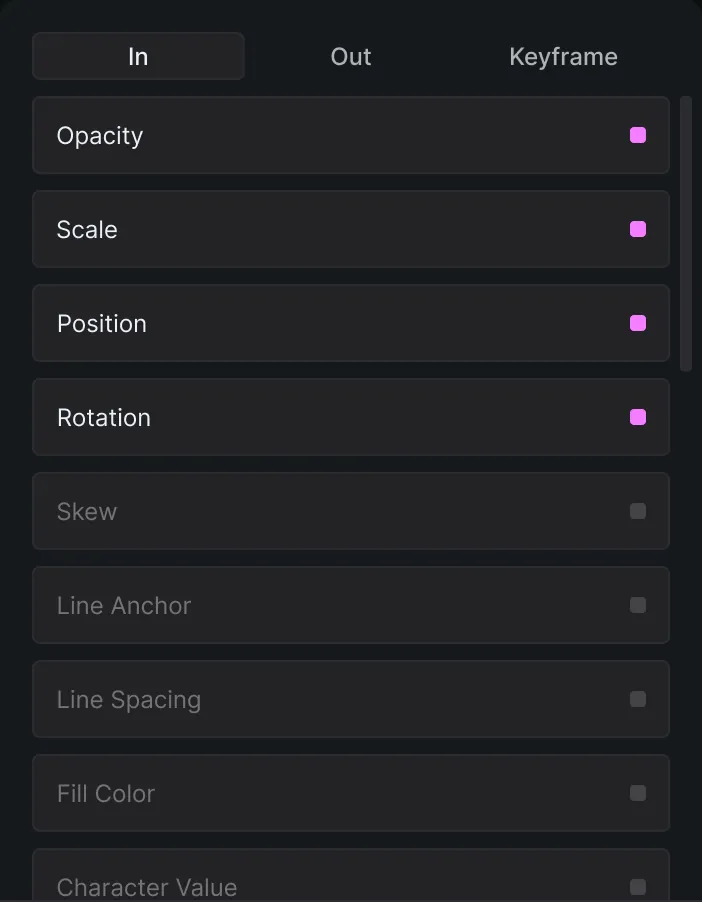
All 15 effects and the three modes are on the page about the Flexile text engine for After Effects.
Ask an AI app for the reveal
Since version 0.17.0 Flexile includes an MCP server. An AI app connected to it can animate text from a request such as “reveal word by word” or “type on”, choosing characters, words or lines by the length of the text, and it can create the text layer too.
Reveal the selected title word by word.
Each call from the AI app is one undo step in After Effects. What else an AI app can do is on the page about Flexile’s MCP server for AI apps.
What you need
- Supported: After Effects 2025 or newer, on macOS and Windows.
- A Flexile account. Flexile is free during beta: no trial, no card, every feature unlocked.
- One selected text layer for the Text page. After your first sign-in the panel installs its Flexile Events plugin, which tells it which layer you selected, and asks you to restart After Effects. On Windows the install asks for administrator approval once.
Related posts
How to make karaoke text in After Effects
Paste the lyrics and let Flexile time every word to the song and highlight it as it is sung, or build a word highlight by hand with a Fill Color text animator.
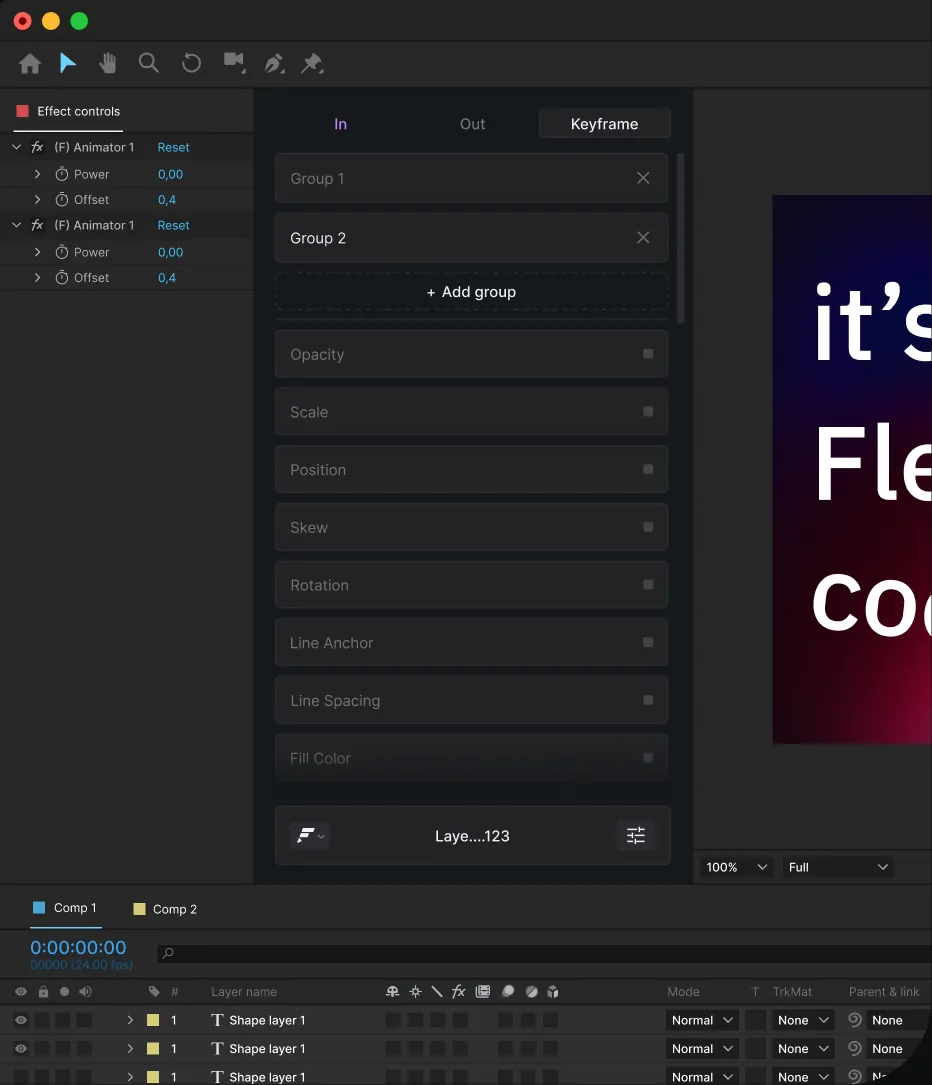
How to ease keyframes in After Effects, with or without the graph editor
Easy Ease and its three F9 shortcuts, exact speed and influence in Keyframe Velocity, the speed graph, and one curve applied to many keyframes at once.
Whisper subtitles in After Effects: models, requirements and steps
What Whisper and whisper.cpp are, which of the five speech models to pick, what your computer needs, and how to turn speech or lyrics into subtitle layers in After Effects.